
Make your badge visible where opportunity happens.
LinkedIn is a professional networking platform where people can showcase their experience, education, skills, achievements and credentials. While LinkedIn is not a digital credential wallet in the same way as the DCC Learner Credential Wallet, it is one of the most widely used places to display and share credentials with employers, peers and professional networks.
Adding digital badges and certificates to your LinkedIn profile can help make your achievements more visible and connect them to your broader professional story.
Activity: Add badges to your LinkedIn profile
Digital credentials are most useful when they can be shared where they are likely to be seen. In this activity, you’ll add a digital badge or credential to your LinkedIn profile and explore how credentials can support your professional visibility.
You’ll find the credential information from your badge or certificate, add it to the Licenses & Certifications section of your LinkedIn profile, and include a credential URL where possible so others can view or verify the achievement.
This activity helps you think about how digital credentials move from being something you earn to something you can use to tell your skills story.
You can also share your badge in a post, but adding it to your profile gives it a more permanent place in your professional story.
Activity Snapshot
Estimated Time: 10 - 15 minutes
What You'll Do: Add a digital badge or credential to the Licenses & Certifications section of your LinkedIn profile.
Who's It For?: Anyone who wants to showcase digital credentials, badges or certificates in a professional profile.
What You'll Need: A LinkedIn account and a digital badge or credential with the issuer name, issue date and credential link.
What You'll Get: A visible credential on your LinkedIn profile and a better understanding of how credentials can support professional visibility.
Step by step instructions
Step 1. Open Your LinkedIn Profile
Log in to LinkedIn, go to your profile, and look for the section called Licences & Certifications. If you can't see it select [Add section], choose Recommended, then select Add licenses & certifications.
Step 2. Add a License or Certification
Go the Licences & certifications section and click on the + to add
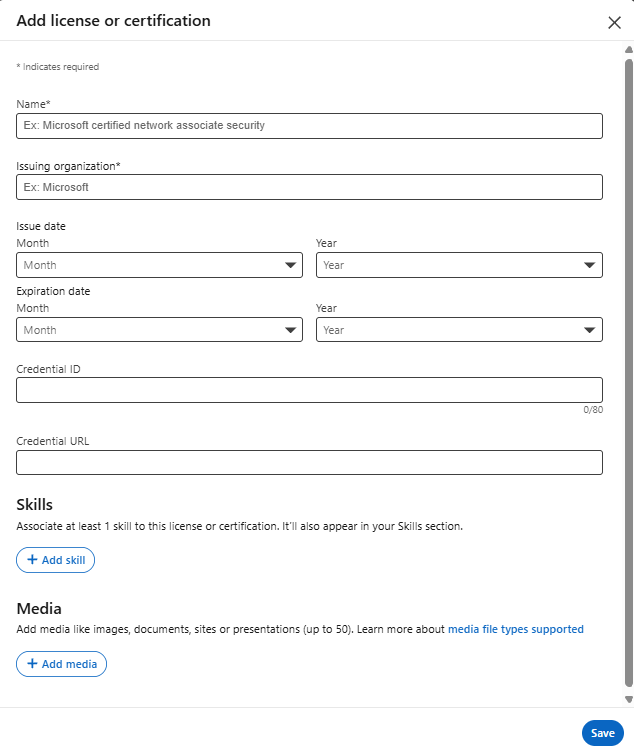
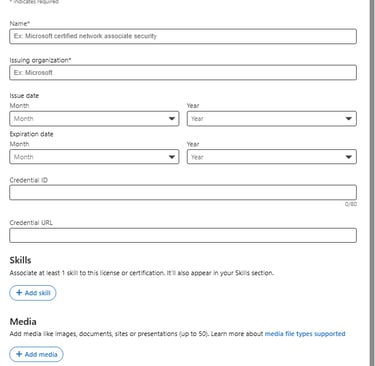
Step 3. Enter Your Credential Details
Add the credential name, issuing organisation, issue date and any expiry date if relevant.
Paste the credential URL or badge verification link into the credential URL field. This allows others to view or verify your achievement.
Step 4. Save Your Credential
Review the details and select Save. Your credential should now appear in the Licenses & Certifications section of your profile.
Need Support?
If you have questions, encounter technical issues, or would like help completing an activity, we're here to help.
Email us at badgesandpit@lifelonglearningpractice.com and we'll do our best to assist you or connect you with the activity provider.
Share Your Achievement
Completed the activity? We'd love to see what you discovered.
Share your badge, skills profile, wallet, insights or reflections on LinkedIn and help others explore the world of digital credentials and skills recognition.
Use #BadgeSandpit in your post so the community can follow your journey and discover new ideas, tools and opportunities.