
DCC
Learner Credential Wallet (LCW) - an open source mobile wallet
The Digital Credentials Consortium (DCC) is a global university-led initiative advancing the use of portable, privacy-enhanced and verifiable digital credentials. Its Learner Credential Wallet (LCW) is an open-source mobile app that enables learners to claim, store and share compatible digital credentials while keeping control of their own records.
This activity builds on the first DCC activity, where you set up your Learner Credential Wallet and claimed your first Open Badges 3.0 credential. If you have not yet created your LCW, start with Earn a Badge and Set Up Your LCW before beginning this activity.
Find out more: DCC


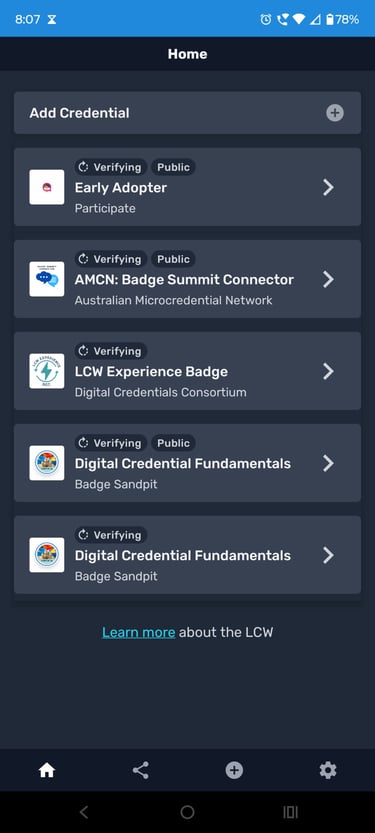
Activity: Add other credentials to your LCW
Once you have set up your Learner Credential Wallet, you can begin exploring how other compatible digital credentials can be added, stored and reviewed.
In this activity, you’ll try adding another badge or credential to your LCW and examine the information it contains. You’ll explore what makes a credential portable, what metadata travels with it, and how wallets can help learners manage achievements across different platforms.
Not every badge will work with every wallet, so this activity is also a useful way to explore the current state of interoperability in the digital credentials ecosystem.
Activity Snapshot
Estimated Time: 10 - 15 minutes
What You'll Do: Add a compatible badge or credential to your DCC Learner Credential Wallet and review its details.
Who's It For?: Anyone who has already set up the LCW and wants to explore how wallets can store and manage multiple credentials.
What You'll Need: The DCC Learner Credential Wallet and a compatible digital badge or credential with a claim link, QR code or import option.
What You'll Get: Experience adding, storing and reviewing credentials in a learner-owned wallet.
Tip: Digital credential wallets are still an emerging technology, and not all badges and credentials are compatible with all wallets. Where possible, use the same email address across activities to make claiming, storing and managing your credentials easier.
Step by step instructions
Step 1. Set Up Your LCW First
Make sure you have completed the first DCC activity and have the Learner Credential Wallet installed on your phone.
Step 2. Choose a Credential
Select a badge or digital credential you would like to try adding to your wallet.
Step 3. Look for Claim or Import Options
Check whether the credential includes a claim link, QR code, downloadable file or wallet-compatible sharing option.
Step 4. Open Your LCW
Open the Learner Credential Wallet on your phone.
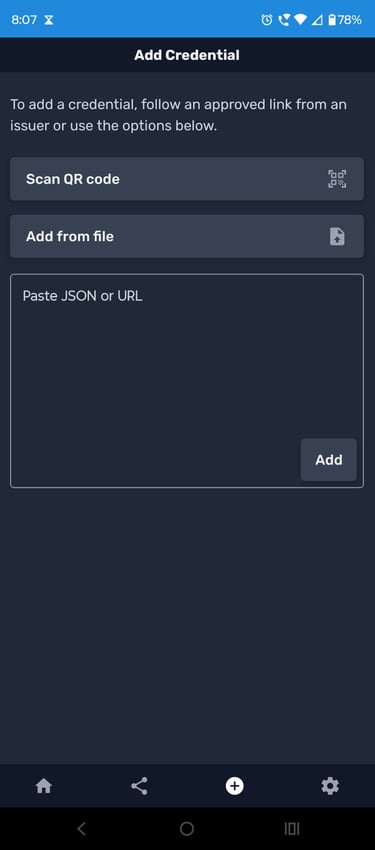
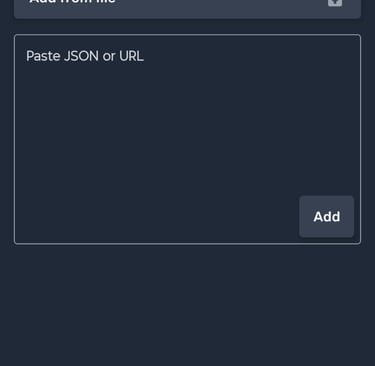
Step 5. Add the Credential
Use the available option to scan, claim or import the credential into your wallet.
Step 6. Review the Details
Look at the credential information, such as the issuer, achievement description, criteria, evidence, issue date and verification details.
Need Support?
If you have questions, encounter technical issues, or would like help completing an activity, we're here to help.
Email us at badgesandpit@lifelonglearningpractice.com and we'll do our best to assist you or connect you with the activity provider.
Share Your Achievement
Completed the activity? We'd love to see what you discovered.
Share your badge, skills profile, wallet, insights or reflections on LinkedIn and help others explore the world of digital credentials and skills recognition.
Use #BadgeSandpit in your post so the community can follow your journey and discover new ideas, tools and opportunities.